Wacom One Review: The 40€ iPad - Using a Drawing Tablet for Studying
The better alternative to buying an iPad for university: drawing tablets - a review of the Wacom One. Plus: my recommended settings for Xournal++
Quickly after beginning my first semester of university, I noticed that using a laptop was not sufficient for taking notes after all – so I set out to consider my options. I quickly decided I wanted to take digital handwritten notes, I just didn’t want to shell out a lot of money for an iPad – luckily I had an idea.
Wacom (drawing) tablets can be had for as low as 40€ and upgrade any laptop to a digital note-taking tool, with all the benefits of desktop operating systems – such as proper multitasking. And they aren’t a bit harder to use than an iPad.
The Setup
I got a Wacom One M (10” size) for roughly 40€.1 It connects via a microUSB cable with your laptop and carries no battery of its own. For my laptop, the size is perfect, as it fits neatly on-top of my keyboard allowing me to use it in tight spaces (such as a lecture hall).
While this is a perfectly suitable way to use it, placing the drawing tablet in front of the laptop allows you a bit more comfort and much easier switching between tablet, keyboard and trackpad.
This model is the lowest end device Wacom offers, but I couldn’t think of a reason I’d need a better model. It’s got space, a nice pen and even two configurable macro buttons on the pen – unlike the 5x more expensive Apple Pencil.
It integrates easily into Windows 11: You can use it without installing drivers, but if you want to customise some settings, such as the button functions, you’ll need to install the official drivers. For Linux, all the necessary drivers are included in any distribution I came across. Even alongside a settings page allowing you to make any necessary adjustments (note: this is sometimes only visible when the drawing tablet is plugged in)
Using It
Writing Comfort
A bit surprisingly, I found absolutely no issues using the tablet for writing, even with longer sessions. The brain does a superb job of connecting the hand movements with the dot on the screen and what is being written. Writing on a screen still feels a tiny bit more natural. However, using the Wacom I was able to look up/forward (on a screen) while writing, which makes for a much more comfortable experience.
I am also very happy with using a desktop operating system for studying – the multitasking is vastly superior to Android and iOS, the screen is bigger (I’m using a 14” laptop) and I can quickly work with a real file browser, annotate PDFs, open up a web browser and use it with a full keyboard while writing.
The only bad part, it’s not really possible to use the writing tablet without a desk – if that’s how you like to study more often than not, I’d still consider an iPad.
Applications
I’ve used the Wacom tablet extensively with both OneNote and Xournal++. I’ll go into detail for Xournal++ here, and I think it is the superior note-taking app being cross-platform, much faster and more reliable than I’ve experienced OneNote to be. It also saves your notes as regular files allowing you to organise them in your file explorer, together with any other course material, PDFs, etc.
Xournal++
Xournal++ works great and is certainly better than any handwritten note-taking app I have encountered on Android. For an optimal experience, I recommend changing some settings:
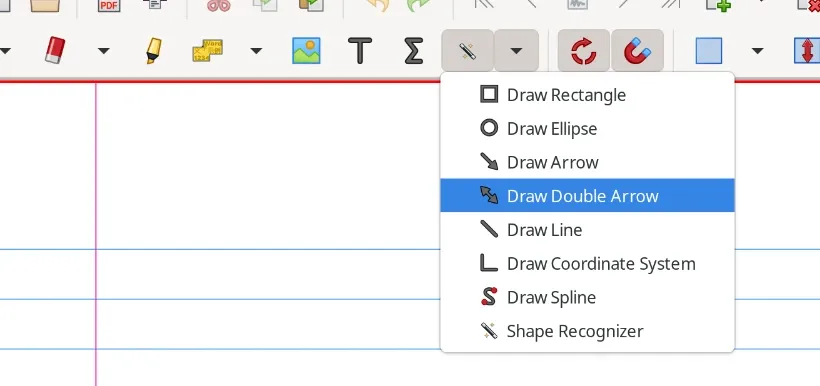
First, next to the sum symbol, open the drop-down and select shape recognizer. It will be enabled whenever you write and Xournal++ will remember this preference across sessions.
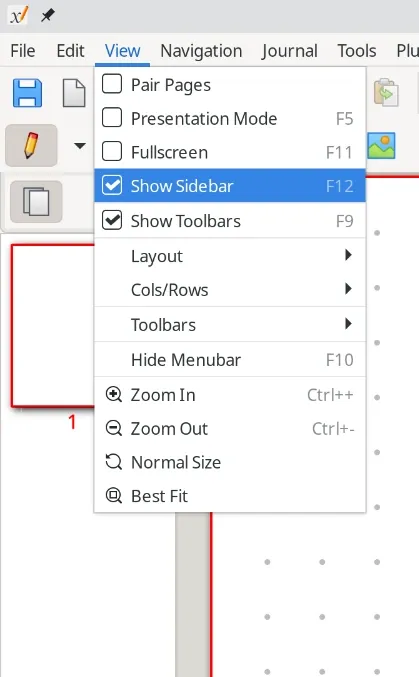
Next, should you ever need an overview of your pages, Xournal++ offers a sidebar you can enable from the view menu.
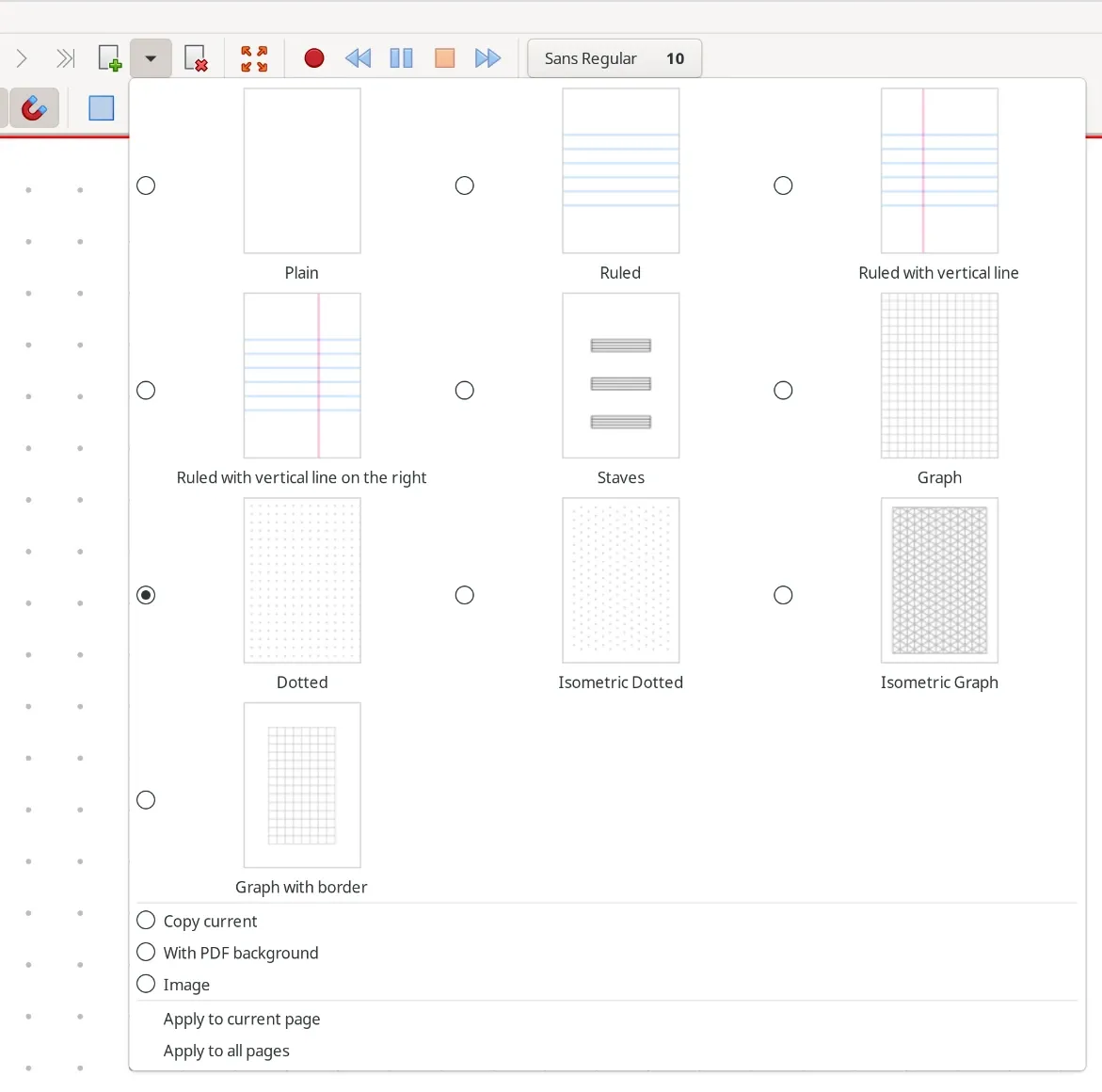
If you ever want to change the page background, open the drop-down next to create a new page. Choose “Apply to all pages”, if you’d like it to be the default (for this document).
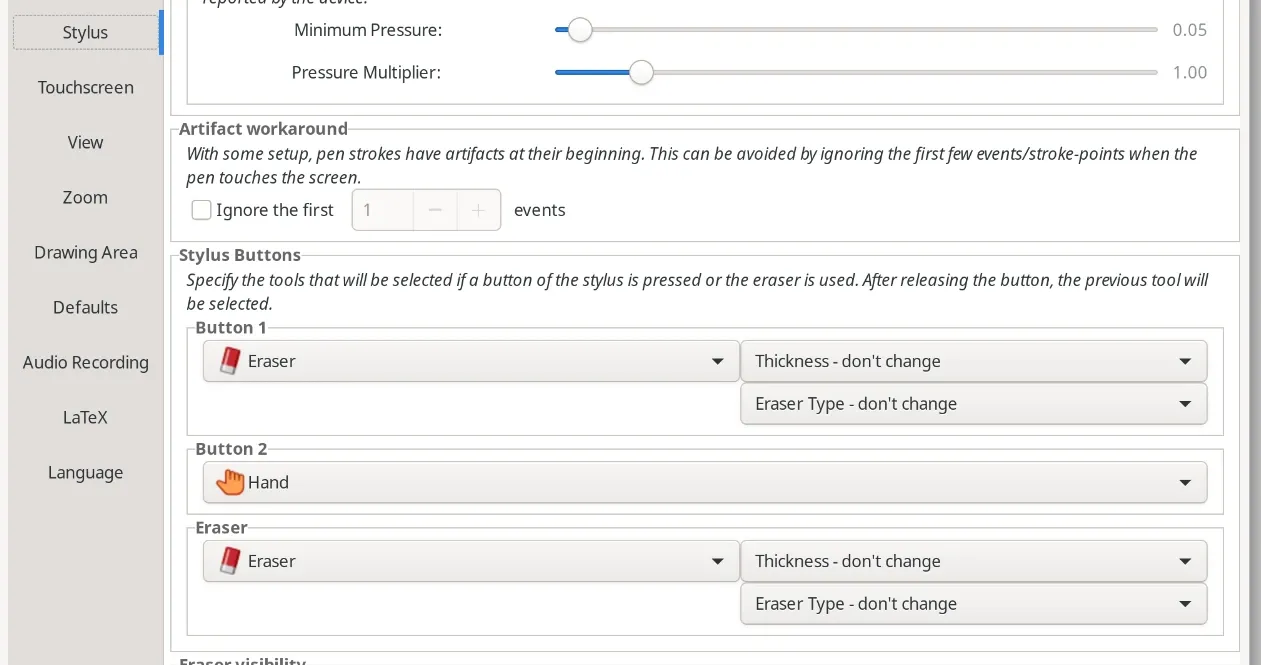
Choose Edit, Preferences to open the settings. Here you can assign functions to the buttons of your stylus. I recommend assigning one to the eraser, you can then hold it to erase.
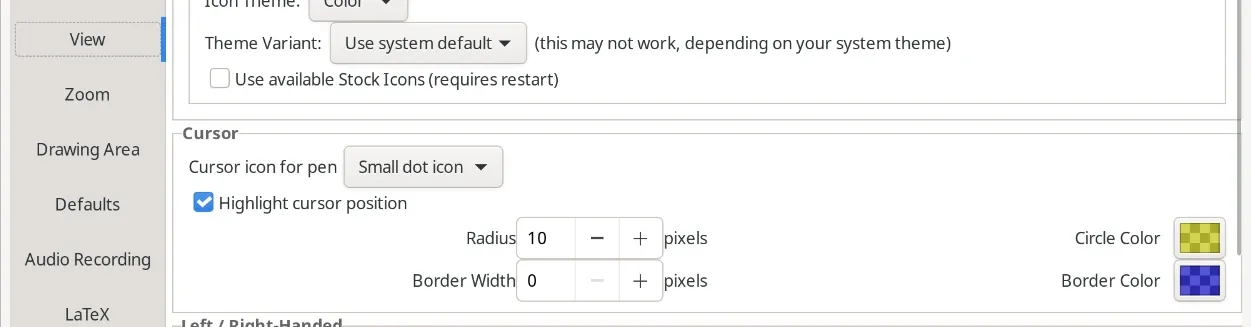
By default, Xournal++ shows a tiny dot as your cursor when using a drawing tablet. It is sometimes quite hard to find on your screen. I recommend adding a highlight around it – I find 10px to be a good size.
Don’t forget to enable auto-save – I think this doesn’t require an explanation.

Finally, you can use Xournal++ to annotate PDFs, just open them in Xournal++ and you are good to go.
OneNote
OneNote works quite well, however it gets quite buggy with or without the tablet from time to time. If you intend to use it with the tablet and experience issues, make sure to:
- Consistently plug in the tablet before opening OneNote
- Restarting OneNote after waking the laptop from sleep, should the tablet have been plugged in while the laptop entered sleep mode
However, I’d really recommend just using Xournal++, it’s available for all platforms, much faster and more reliable.
Conclusion
Having used this as my study setup for two years, I can very much recommend it. I have heard reports of others finding drawing tablets more difficult for handwriting. I cannot comment on that, but you might want to try it out if a friend of yours happens to have one.
The advantages however are clear and many: An unbeatable price, access to a full operating system and web browser, great multitasking, two great options for apps and less weight to carry around. For me, they were well worth it.
The only other option I would consider: a reMarkable/e-ink tablet (or actual paper) – sitting outside in the summer sun without any issues seeing the screen is definitely something I’d like from my current setup. Though using a modern Mac with their 1000+ nits together with the drawing tablet might solve that.
notes (1)
-
There are several newer products with the same name for much more, use the link below for reference. ↑
newsletter
Stay updated on new blog posts and projects by me; sent less than once per week.
written by
Hi, I’m Bruce, a Computer Science student at ETH Zurich. I build mobile apps, websites and other products, and I write about the interesting things I run into along the way. More about me →